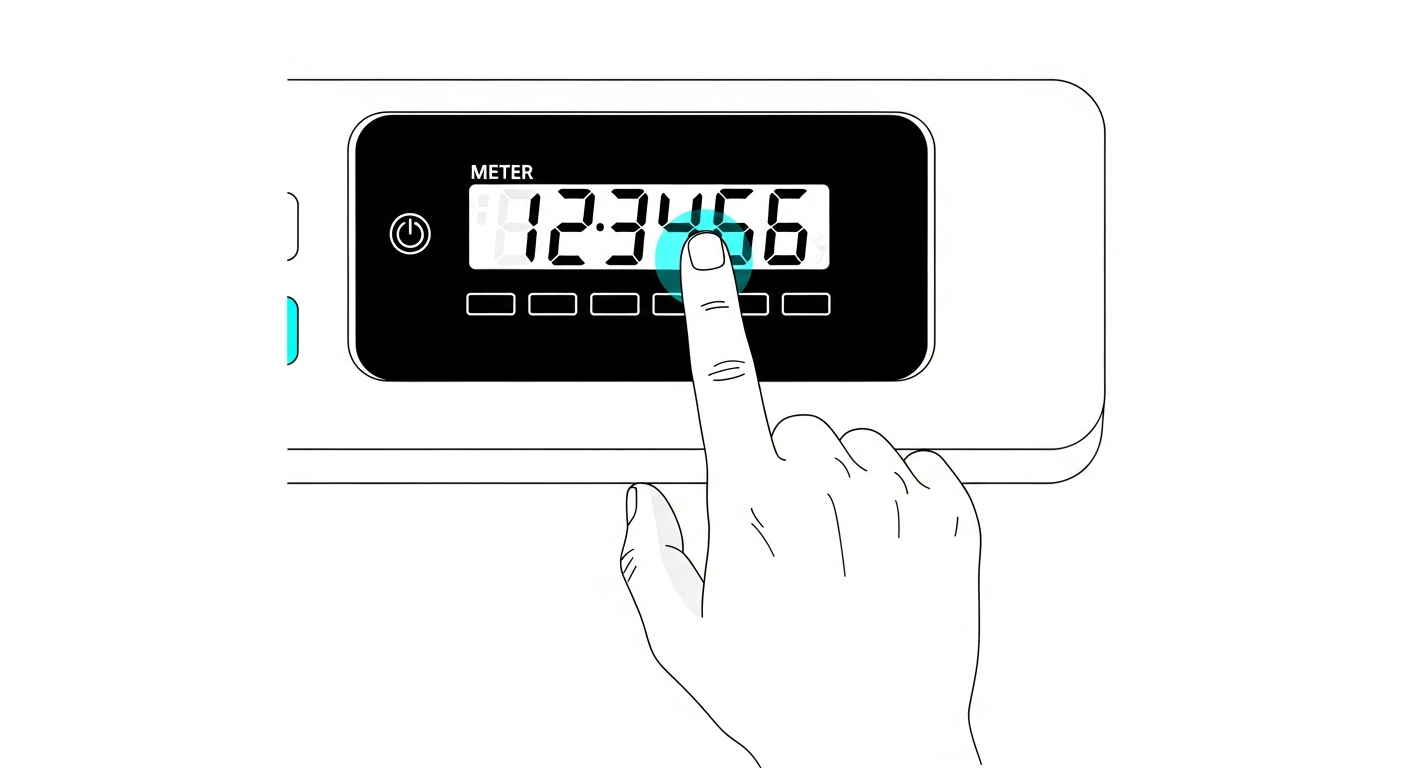
Every copier and multifunction printer maintains internal counters that track how many pages it has printed since day one. These meter readings are the foundation of accurate cost tracking — but only if you read the right counter. Many shop owners record the wrong number and end up with cost calculations that are off by 20–40%.
This guide covers how to find and read the correct counters on the five most common copier brands in India: HP, Canon, Ricoh, Kyocera, and Konica Minolta.
Understanding What Counters Exist
Most machines maintain several different counters. Before looking at specific brands, here's what you'll typically find:
- Total Counter: The overall page count since the machine was first powered on. This is the "odometer" of your printer. On B&W machines, this is often the only counter you need.
- A4 Counter / Small Size Counter: Pages printed on A4, B5, Letter, or other small paper sizes. This is critical if your machine handles both A4 and A3.
- A3 Counter / Large Size Counter: Pages printed on A3, B4, Ledger, or other large sizes. Each A3 page uses roughly twice the toner of an A4 page.
- Color Counter: On color machines, this tracks how many pages were printed using color toner (as opposed to B&W only). Essential for calculating CMYK costs.
- B&W Counter (on color machines): Pages printed using only black toner on a color machine. Important because these pages don't consume CMYK toner.
- Scan / Copy / Print Counters: Some machines separate counts by function. For cost tracking, you usually want the total of copy + print (scans don't consume toner).
HP Machines
LaserJet Pro Series (M1136, M126, M128, M226, M402, M428)
HP makes it relatively straightforward. For most LaserJet Pro models:
- Press the Setup button (wrench icon) on the control panel
- Navigate to Reports
- Select Configuration Report or Supplies Status Page
- The machine prints a page showing "Total Pages" or "Page Count"
On newer models with touchscreens (M428, M479, etc.), go to Settings > Reports > Configuration/Status Pages > Configuration Page.
Important: HP desktop printers typically show only a single total counter. They don't separate A4 and A3 because most HP LaserJet Pro models are A4-only. If you have an HP A3 machine (PageWide or LaserJet Managed series), the counter page will show size-separated counts.
Common mistake: Some HP machines show a "Cartridge Page Count" which resets when you install a new cartridge. This is NOT your meter reading. You need the lifetime "Total Pages" counter that never resets.
Canon Machines
imageRUNNER Series (iR 2004, 2006, 2206, 2425, 2625, C3226)
Canon copiers are among the most common in Indian offices. Here's how to find the counters:
- Press the Counter Check button on the control panel (often labeled with "123" or a meter icon)
- The display shows the main counter immediately
- For detailed breakdown, press Menu > Counter Confirm or on newer models, tap Status Monitor > Device Information > Counter Check
Canon machines typically show:
- Counter 101: Total prints (all sizes)
- Counter 108: Total A3 prints (called "Large" or "LG")
- Counter 109: Total A4 prints (called "Small" or "SM")
- Counter 113/114: Color prints (on color models)
Important: On Canon machines, Counter 101 may include both copy and print jobs. If you need to separate them, look for counters 107 (copy) and 112 (print). For cost tracking, using the combined total is usually fine since both operations consume toner equally.
Common mistake: On Canon iR 2006 and 2206, the "Total" counter shown on the quick display sometimes includes scan counts. Always use the detailed counter page (Counter 101) which excludes scans.
Ricoh Machines
MP and SP Series (SP 210, SP 310, MP 2014, MP 2501, MP 301, MP C2004, C3004)
Ricoh machines have the most detailed counter systems, which is both a blessing and a potential source of confusion:
- Press the User Tools or Home button
- Select Counter (it may appear directly on the home screen)
- The basic counter display shows total B&W and total Color counts
- For size-wise breakdown, look for Counter > Machine Counter or print a Maintenance Page from User Tools > Printer Features > List/Test Print
On Ricoh MFPs, you'll typically find:
- Total B&W: All black-and-white prints across all sizes
- Total Full Color: All color prints (on color models)
- A3/DLT counter: Large-format page counts
- A4/LT counter: Small-format page counts
Important: Some Ricoh machines in India are sold under the Savin or Gestetner brand with identical menus. The counter location is the same regardless of branding.
Common mistake: Ricoh's "Total Counter" on some models counts A3 as 2 units (equivalent A4 count). This is useful for billing but confusing for cost tracking. Check whether your machine shows "actual" or "equivalent" counts. If the machine shows equivalent counts, you cannot back-calculate the A3 number. Use the size-separated counters instead.
Kyocera Machines
ECOSYS and TASKalfa Series (M2040, M2540, M6235, TASKalfa 2201, 3212i, 2554ci)
Kyocera machines are popular in India for their low running costs. Here's where to find the counters:
- Press System Menu / Counter on the control panel
- Select Counter
- The display shows "Total Printed Pages", "Total Color Pages", and "Total B&W Pages"
- For size breakdown, print a Status Page from System Menu > Report > Report Print > Status Page
Kyocera desktop ECOSYS models (M2040dn, M2540dn) have a simpler display. Press Menu > Counter and you'll see the total page count. These A4-only machines don't need size separation.
Common mistake: Kyocera TASKalfa machines have a "Billing Counter" that may differ from the "Machine Counter." The billing counter is what your service provider uses and may apply multipliers for A3 or color. Always use the actual machine counter for your cost calculations.
Konica Minolta Machines
bizhub Series (bizhub 225i, 226, 306, 367, C226, C258, C308)
Konica Minolta bizhub machines are workhorses in Indian print shops. The counter is easy to access:
- Press the Utility/Counter button (or tap the meter icon on touchscreen models)
- Select Counter
- The display shows Total, Copy, Print, Scan, and Fax counts
- For color models, it shows B&W Total, Color Total, and Total separately
For size-wise breakdown on bizhub MFPs, go to Utility > Counter > Check Details. You'll find counters broken down by paper size (A3, A4, B5, etc.).
Important: Konica Minolta bizhub machines in India often have a "Total" counter that counts A3 pages as 2 A4 equivalents. This is the counter that service providers and AMC agreements reference. For actual cost tracking, you need the size-separated counters from the detailed view.
Common mistake: On bizhub color machines, the "Color" counter includes pages with even the slightest color element. A mostly black document with one colored logo counts as a full color page. This is correct for toner cost tracking (since the machine did use color toner), but many owners don't realize this inflates their color count.
The Golden Rules of Meter Reading
Regardless of which machine brand you have, follow these rules for accurate cost tracking:
- Always record the counter at the moment of toner or part change. Don't wait until end of day or "sometime later." Print a counter page, take a photo of the display, or write it down immediately.
- Record A4 and A3 separately if your machine prints both sizes. Using only the total counter on an A3-capable machine will under-count your toner consumption.
- Use the machine counter, not the billing counter. Billing counters often have multipliers applied. You need raw page counts.
- Never use the toner cartridge counter. Many machines show "pages since last toner change" — this resets and doesn't give you the lifetime reference point you need.
- On color machines, record both B&W and color counters. Your black toner serves both B&W-only pages and the K channel of color pages. Your CMYK toner only serves color pages. You need both numbers to calculate costs correctly.
A meter reading is only useful if it's the right counter, recorded at the right time. Everything else is just a number.
PrintCostCalculator makes this simple: enter your A4 and A3 counter readings when you change toner or parts, and the system handles all the math — equivalent page calculations, cost per page, and lifecycle tracking across all your machines. Try it free for 30 days.